Payment Settings
Soracom provides two methods of payment for fees incurred on the Soracom platform.
Only Root users can register or update payment settings. SAM users cannot access or change payment information.
Paying by Credit Card
To pay for services using a credit card, register a credit card to your account.
Registering a credit card replaces the current payment method for your account. If your account is currently set to use bank transfer or trial payment, that setting will be replaced.
-
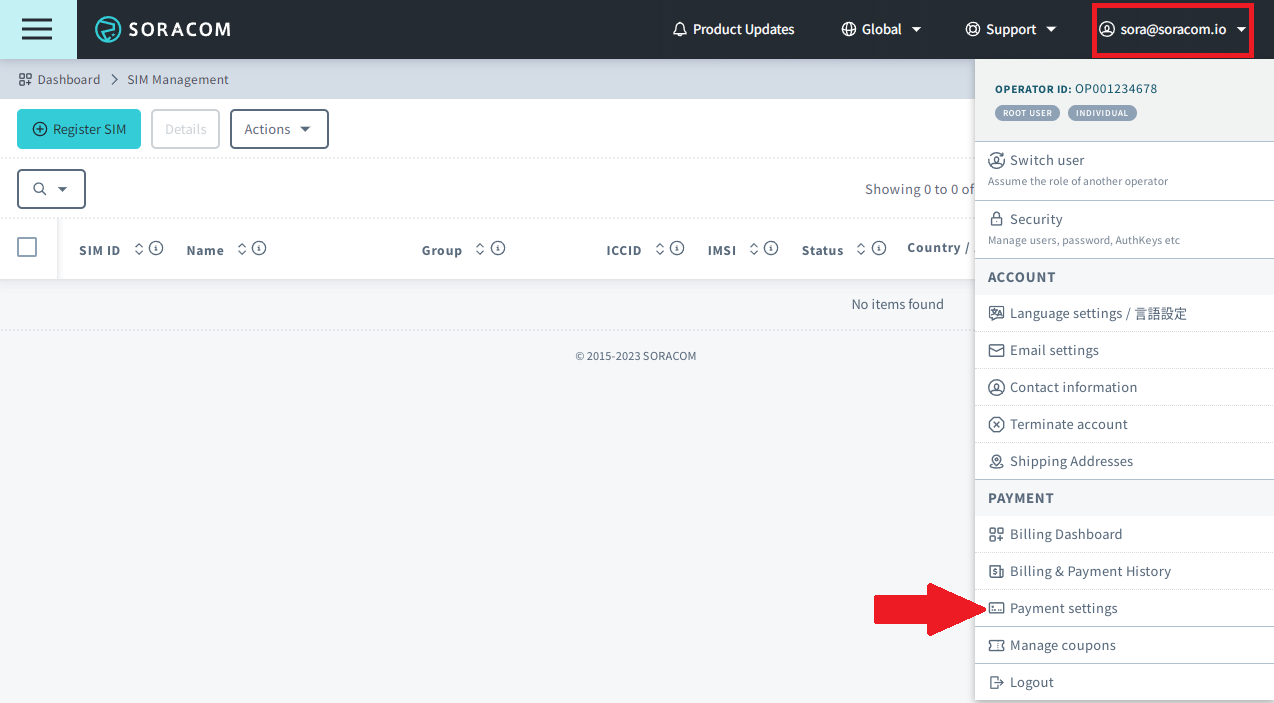
Sign in to the User Console. Click your account menu, then select Payment Settings.
-
Follow one of these steps to register your credit card:
- If you have not registered a credit card, click the New payment method button.
- If you have already registered a credit card but wish to use a different credit card, click the Update Credit Card button.
- If your account is set up for bank transfer but you wish to switch to credit card payment, click the Switch to credit card button.
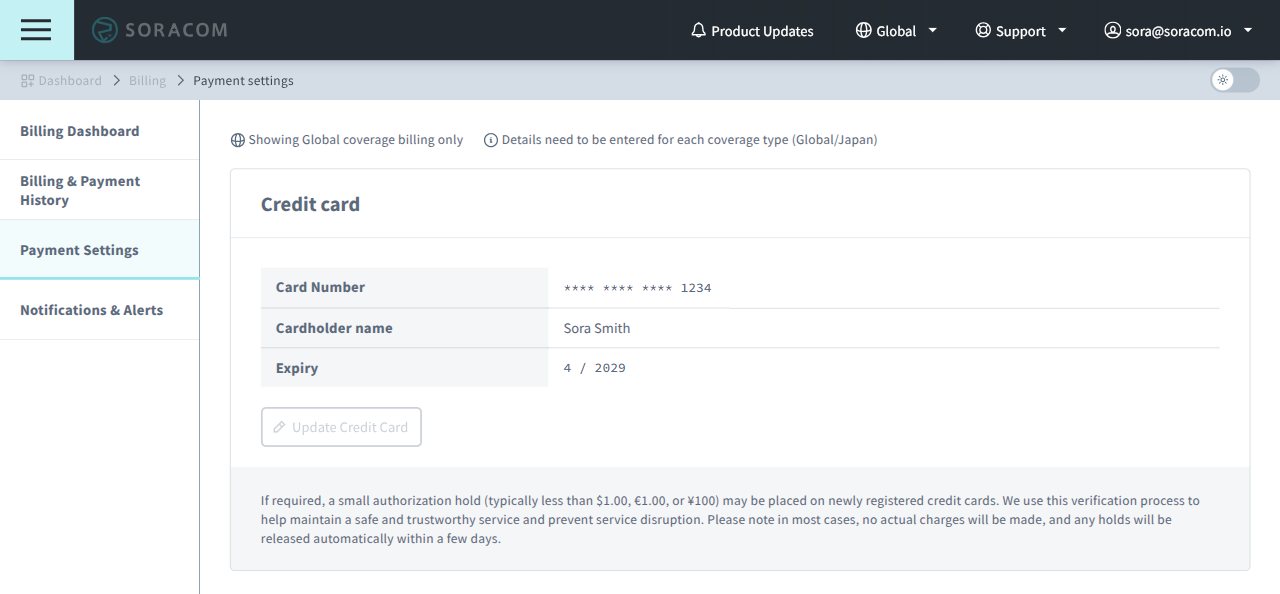
- Fill in your credit card information, and click Submit.
When registering a credit card, a small hold will be placed on your card for verification purposes. Additionally, a hold will be placed on your credit card at the beginning of each month in order to process payment for the prior month's service fees, and also when you purchase items directly from Soracom.
A credit card must be registered separately for the Global and Japan coverage types. If your account uses both coverage types, confirm that the card registered for each coverage type is valid.
Resolving a Credit Card Payment Error
If a payment using your registered credit card fails, the Payment Settings page will display an error banner, including an error code such as card_declined.
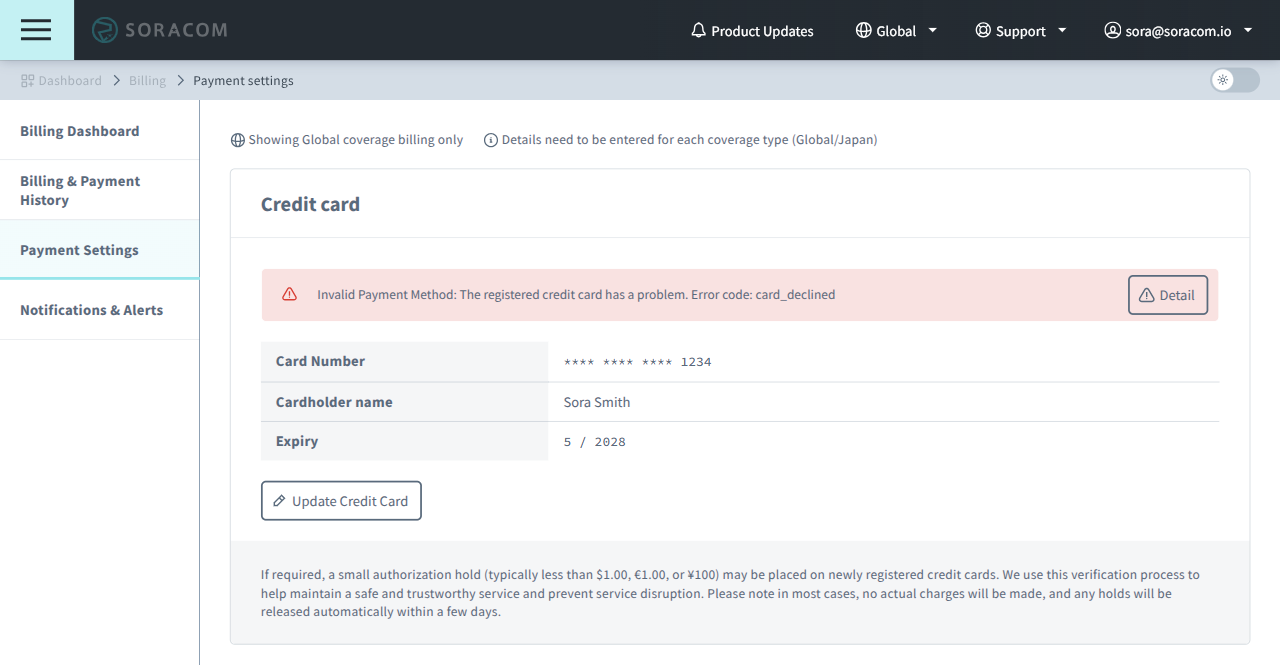
Payment Errors
Some card issuers may not provide Soracom with a specific reason for a payment error. However, common causes include:
- Expired credit card - update your credit card information
- Insufficient funds or credit limit reached - contact your card issuer, or update your credit card information to use a different card
- Card issuer declined the payment - contact your card issuer to confirm there is no block, hold, or limit on the card
- Incorrect or outdated payment information - update your credit card information
If you are unsure why the payment failed, confirm that your card is valid and has sufficient available credit. For the exact cause, contact your card issuer directly.
Automatic Payment Retry Timing
Soracom processes monthly service fees at the beginning of each month for the prior month's usage. If a payment for monthly service fees fails, Soracom automatically retries the payment daily. Once the cause of the payment error is resolved (such as raising the credit limit or releasing a block by your card issuer), the following retry should succeed with no further action required.
Automatic retry does not apply to payments for orders. If a payment for an order fails, contact Soracom Support.
Retrying a Failed Payment Manually
You can also process any outstanding monthly service fees manually instead of waiting for Soracom to automatically retry. To retry a failed payment for monthly service fees using the registered credit card:
-
Sign in to the User Console. Click your account menu, then select Payment Settings.
If your account uses both Global and Japan coverage types, confirm you are viewing the coverage type where the payment error occurred.
-
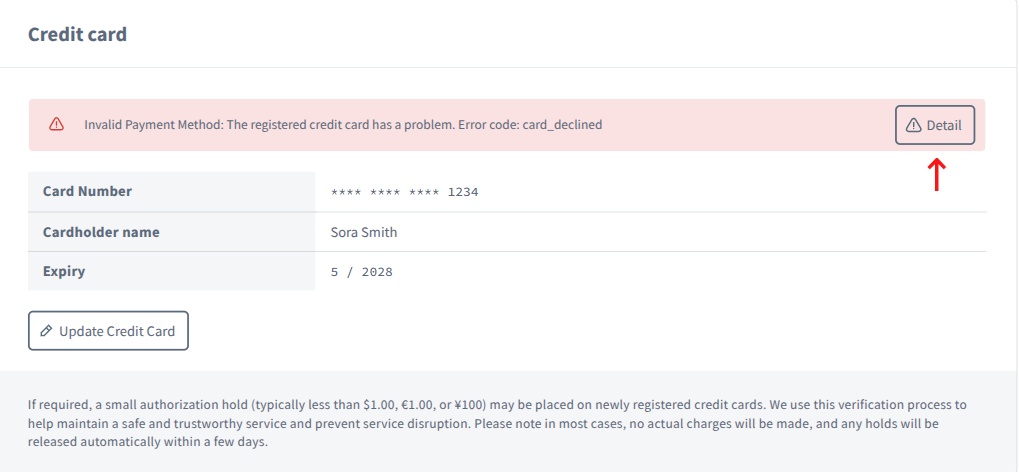
Click Detail.
-
Confirm that the cause of the payment error has been resolved, then click Activate to retry the payment using the registered credit card.
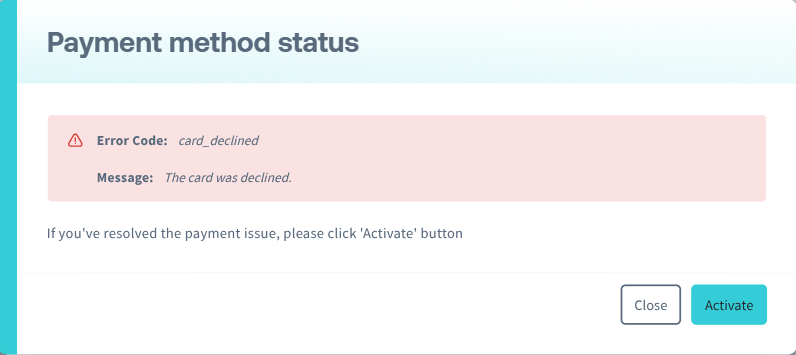
If the retry fails, or if you need to use a different card, update the credit card information registered to your account. Re-registering a card, including the same card, triggers an immediate payment attempt for any outstanding monthly service fees for that coverage type. Before updating or re-registering a card, confirm that the card has sufficient available credit.
If the Problem Persists
If payments continue to fail after you have followed the steps above:
- Follow up with your card issuer to confirm there is no ongoing block, hold, or limit that could affect future payments.
- If possible, try a different credit card.
- Contact Soracom Support as soon as possible to avoid any interruption to your service.
Paying by Bank Transfer
If you would like to pay via bank transfer, contact us to submit a request. A Soracom representative will advise you on the terms associated with making payments by bank transfer.
Once bank transfer has been enabled on your Soracom account, you will receive an invoice at the beginning of each month for the previous month's fees. As you will be responsible for scheduling each bank transfer, ensure that you complete the bank transfer by the due date indicated in each invoice.